Notepad
Introduction to Note Pad
Introduction
v Notepad is a simple text editor for Microsoft windows.
v It enables computer users to create documents.
v It has been included in all versions of Microsoft windows since windows 1.0 in 1985.
v The resulting files are typically saved with the .txt extension.
Steps to open windows Notepad
Step 1: On the windows desktop, find the windows Search Box.
Step 2: In the Search Box, type notepad.
Step 3: Click on the Notepad option in the search results.
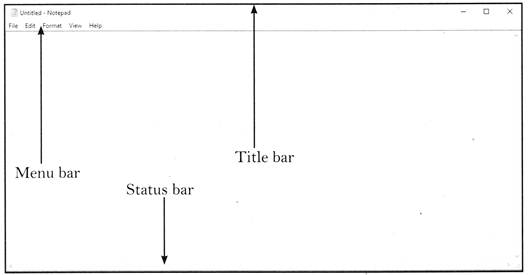
It will launch Windows Notepad application with an untitled blank windows as shown in the picture.
Title bar
v The top most bar of the Notepad window is called the title bar.
v It opens with a name of Untitled - Notepad.

Status bar
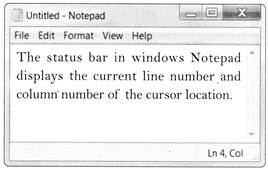
The status bar in windows Notepad displays the current line number and column number of the cursor location.
Menu bar
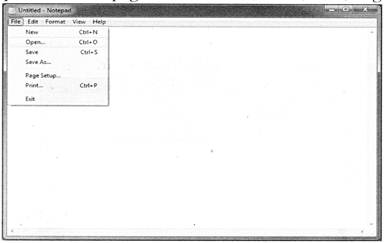
The menu bar contains options of File, Edit, Format, View and Help tab.
1. File tab
File tab contains option of New page, Save, Save as, Print, Exit, Page setup etc.
2. Edit tab
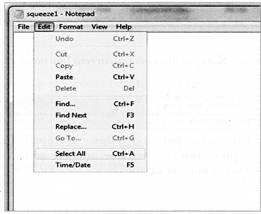
Edit tab contains options of Undo, Cut, Copy, Paste, Delete, Select all. Find, Find next, Replace etc.
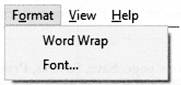
3. Format tab
Format tab contains Word Wrap and fonts of writing.
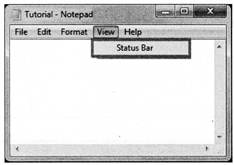
4. View tab
View tab contains option to enable or disable Status bar.
How to open Notepad
Users who are using Microsoft Windows can run Notepad (notepad.exe) by following the steps below.
Windows 10
- On the Windows desktop, find the Windows Search Box.
- In the search box, type notepad.
- Click the Notepad option in the search results.
Windows 8
- Go to the Windows Start Screen.
- Type notepad.
- Click the Notepad option in the search results.
Windows 7 and earlier
or
- Click Start.
- In the Start menu, click Programs or All Programs, then click the Accessories folder.
- Click the Notepad icon.
How to create a text file using Notepad
Open Notepad and type the text you want in the file. Once done, save the file by clicking File and selecting Save. When saving the file, make sure the file is saved with a ".txt" extension.
or
On the Windows desktop or in any folder, right-click an empty spot. In the pop-up menu, select New and then Text Document. After this is done, a file should appear named "New Text Document". Double-click this file to open the text document, or rename the file to the name of your choice, and then open the file.
Can you insert a picture in Notepad?
No. Notepad is a plaintext editor and does not support pictures. If you want to insert pictures, consider using WordPad instead of Notepad. Keep in mind that if a WordPad document contains pictures, it must be saved as an .RTF (rich text file), and not a .TXT (plain text file).
How to change the font in Notepad
Notepad is a plaintext editor and does not support fonts and therefore the font cannot be changed. Windows users can use WordPad instead to get font support or should consider using a word processor like Microsoft Word.
Can you center text in Notepad?
No. Notepad is a plaintext editor and does not support the ability to center text, alignment, or other formatting.
How do you print a Notepad document?
- In Notepad, open the document you want to print.
- In the file menu, click File, and select Print.

- Select the printer that you want to use to print the document.
- Click Print.

How to create a text file
You can create a text file on your computer with a text editor. An example of a text editor is Notepad, which is included with Microsoft Windows.
When we refer to a "text file" we are talking about a plain text file without any text formatting (e.g., bold), images, different fonts, font sizes, etc. If you need to create a more rich document with any of these features see: How to create a document.
The below recommendations are for programs included with an operating system. You can also download and install a more powerful and free text editor such as Notepad++ to create, view, and edit text files.
Open and use Notepad
The easiest way to create a text file in Windows is to open up the Notepad software program on your computer. The Notepad is a text editor included with Microsoft Windows.
A text file is considered a plaintext file and Notepad is only capable of creating and editing plaintext files. Notepad saves any text file with a .txt file extension, which means no special formatting or fonts can be used.
The Windows Notepad program can be opened using either of the methods below.
Or
- Click Start.
- Open All Programs, Accessories, then click the Notepad shortcut.
Save the file as a text file
You can also create a text file using any other word processing software program, like Microsoft Word or WordPad. When saving the file, change the file name or file type to Plain Text to save it as a text file. In many of these programs, you also have the option to save the file as a Rich Text Format.

After the file is created and saved, it can also be edited using Notepad or another word processing software program.
Create a new text file from the desktop
Another way to create a text file is to right-click an empty area on the desktop, and in the pop-up menu, select New, and then select Text Document.
Creating a text file this way opens your default text editor with a blank text file on your desktop. You can change the name of the file to anything you want. You can edit the file in the Notepad program or any other word processing software program, like Microsoft Word.
These same steps can be used in any other location on your computer, for example, another folder.
Create a text file from the Windows command line
While in the Windows command line, you also can create a new text file in the current directory. With earlier versions of Windows, a new file of any type, including text files, could be created using the edit command line command. Later versions of Windows removed the ability to use the edit command for this purpose. Instead, you can use the echo command at the Windows command line to create an empty text file in the current directory. An example of using this shown below.
echo.>myfile.txt
In the example above, you are using the echo command to create a file named "myfile.txt" in the current directory. Note that there are no spaces between echo, the period, the greater-than sign (>), and the file name.
Another option for creating a text file from the command line is with the start command, as shown in the example below.
Comments
Post a Comment